UX Case Study · Enterprise Navigation & Permissions
Overview
This case study was created as part of a product design exercise focused on organizing enterprise dashboards through a scalable folder and permission model
The Problem
In large companies, dashboards quickly accumulate across many teams.
As the number grows:
Users struggle to find the content they need
Dashboards become harder to organize efficiently
Admins lose control of access and structure
Important dashboards get lost in the noise
The Challenge
Design a dashboard system that works for both admins and end users, balancing simplicity with governance.
Create a structure that stays clear, organized, and scalable as the system grows.
User Roles & Capabilities
The system separates personal dashboard work from organizational governance. End users manage their own dashboards, while admins maintain structure, permissions, and system integrity.
End user
End users work in personal space and do not manage system structure.
No sharing, permissions, or organizational folders keeping the experience simple.
Create and manage dashboards under My Dashboards
Organize dashboards into personal folders
Use tags for filtering and discovery
Mark dashboards and folders as Favorites
Admin
Admins maintain structure, governance, and access across the organization.
This separation provides full administrative control without adding complexity for regular users.
Create and manage organizational folders
Define and maintain folder hierarchy
Set and update access permissions
Move dashboards and folders across the system
User & Admin Flows
The flows below demonstrate how administrators manage structure and permissions,
while end users organize and consume dashboards within their personal workspace.
Admin Flow- Structure & Permissions
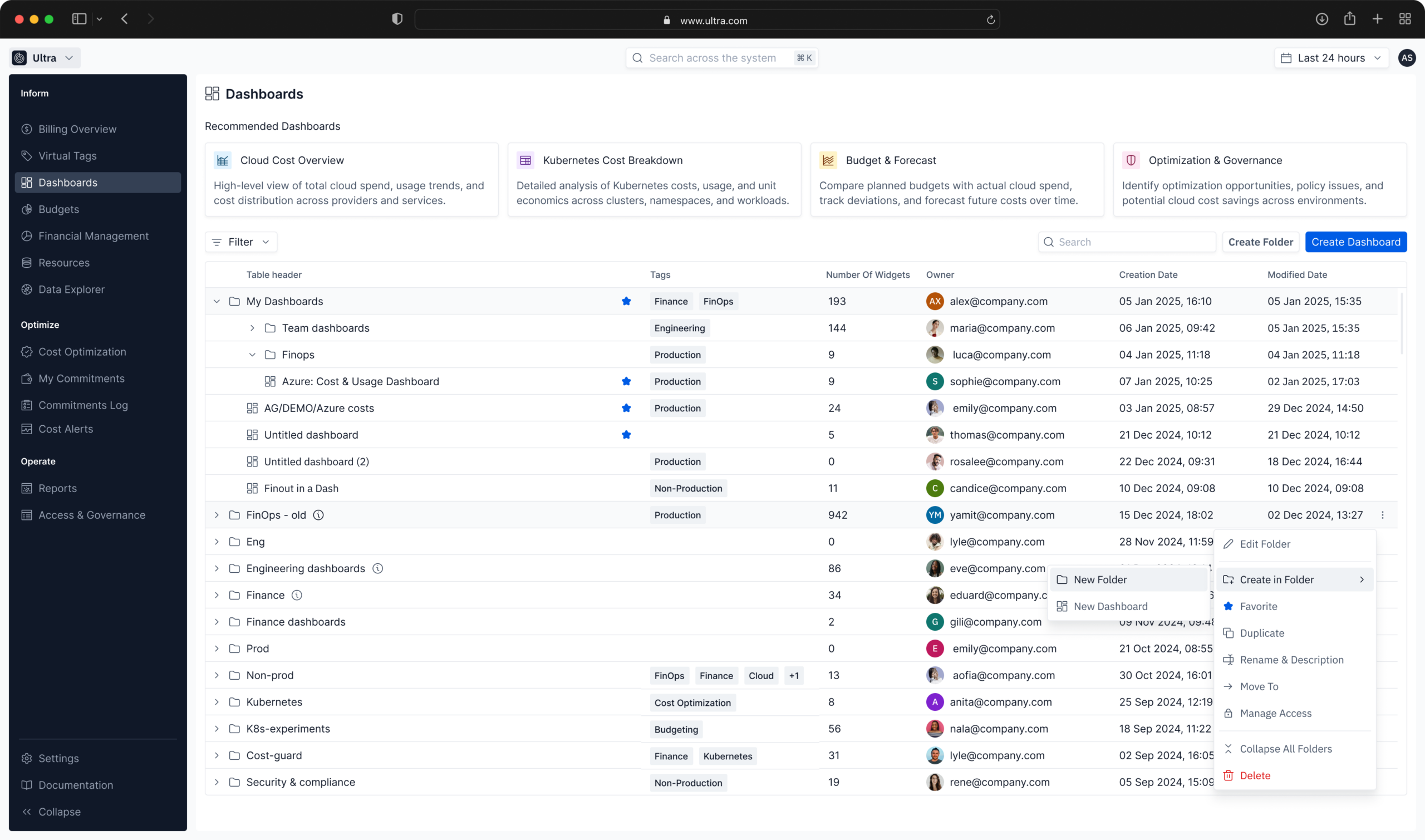
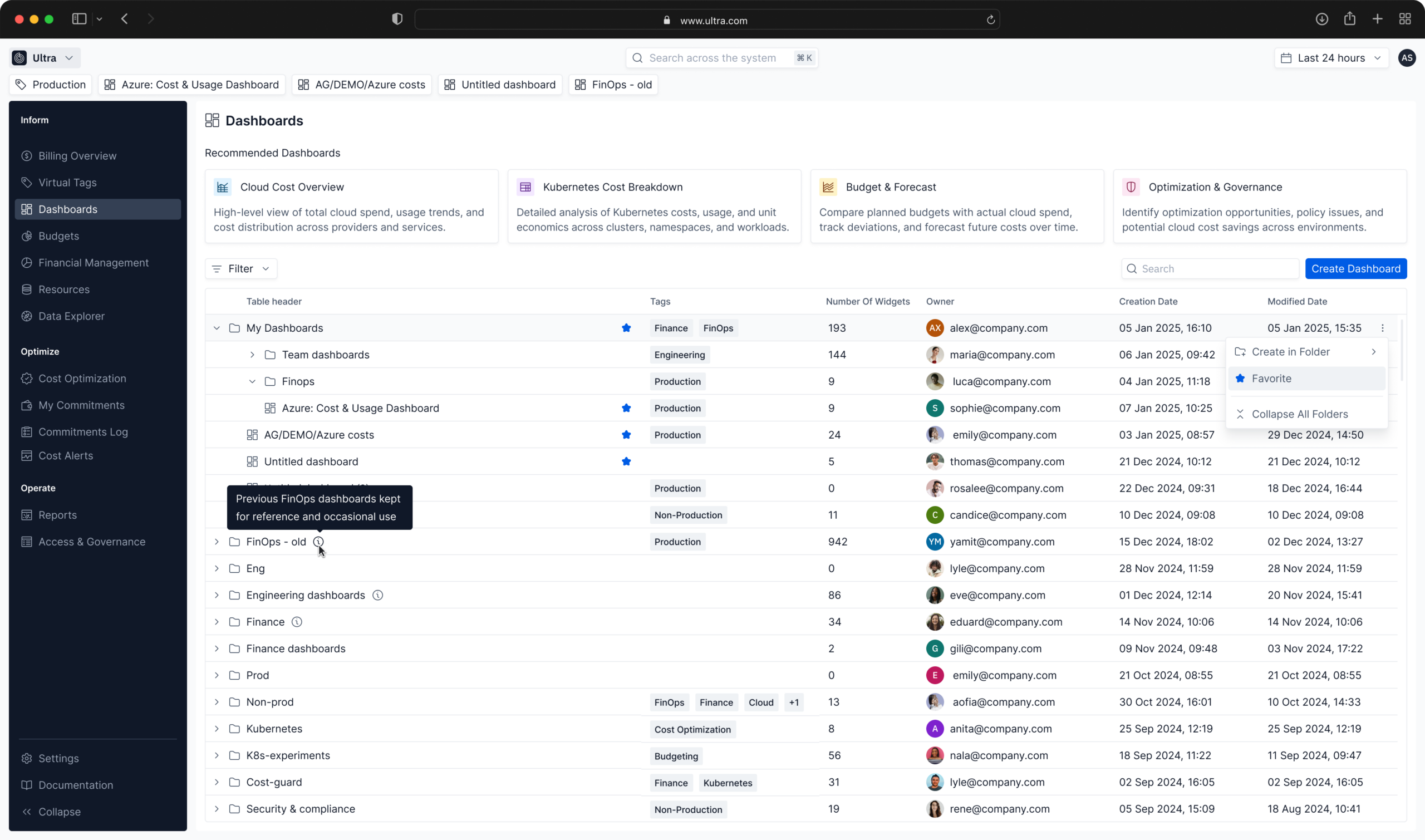
Step 1// Dashboards & Folders Overview
Admins access the main dashboards screen where all organizational folders and dashboards are visible.
This view provides control over structure and organization.
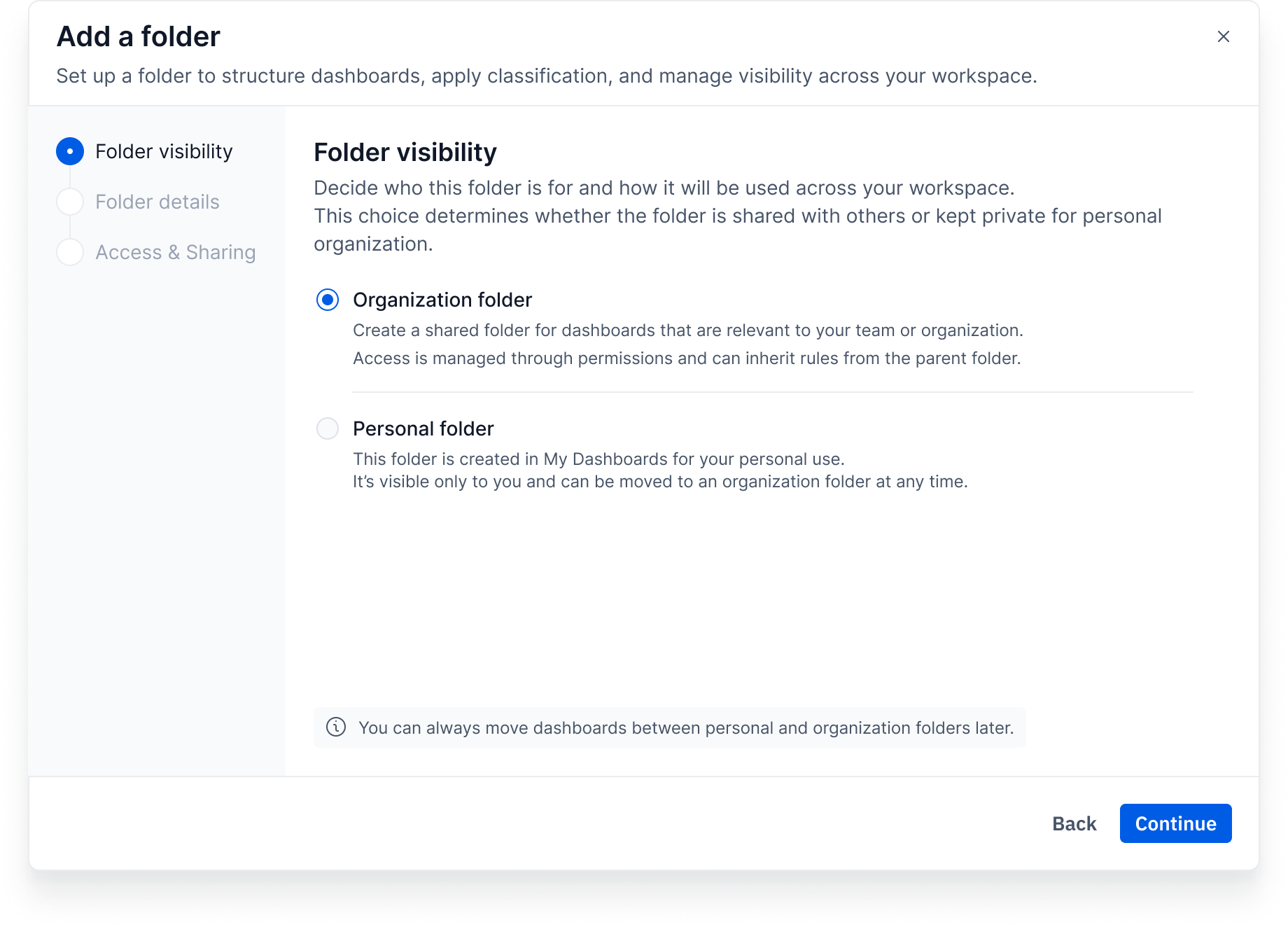
Step 2// Create Organizational Folder
Administrators create a new folder to organize dashboards by team, domain, or goal.
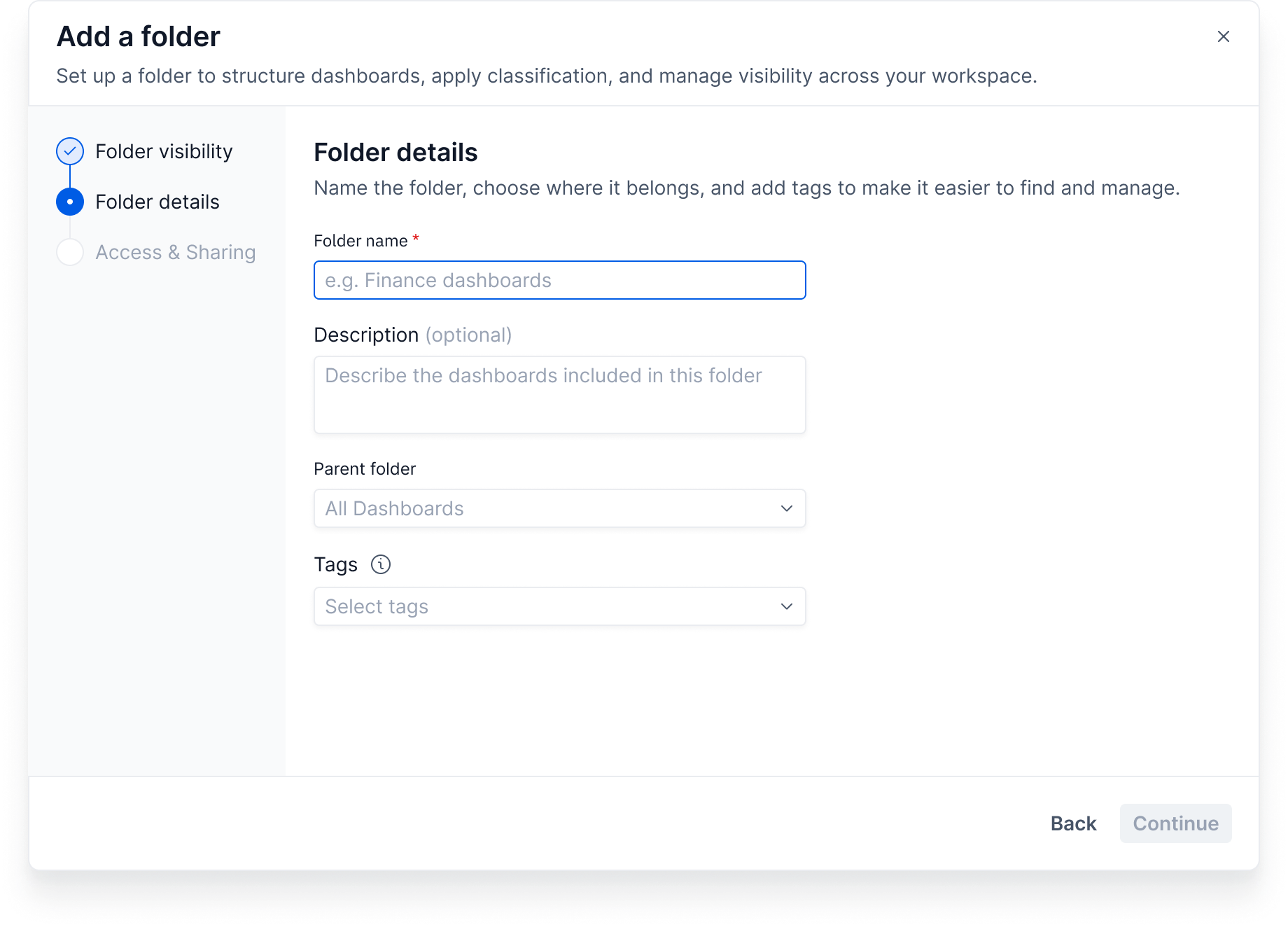
Step 3// Define Folder Details
Admins set folder name, description, and classification to support clarity and scalability.
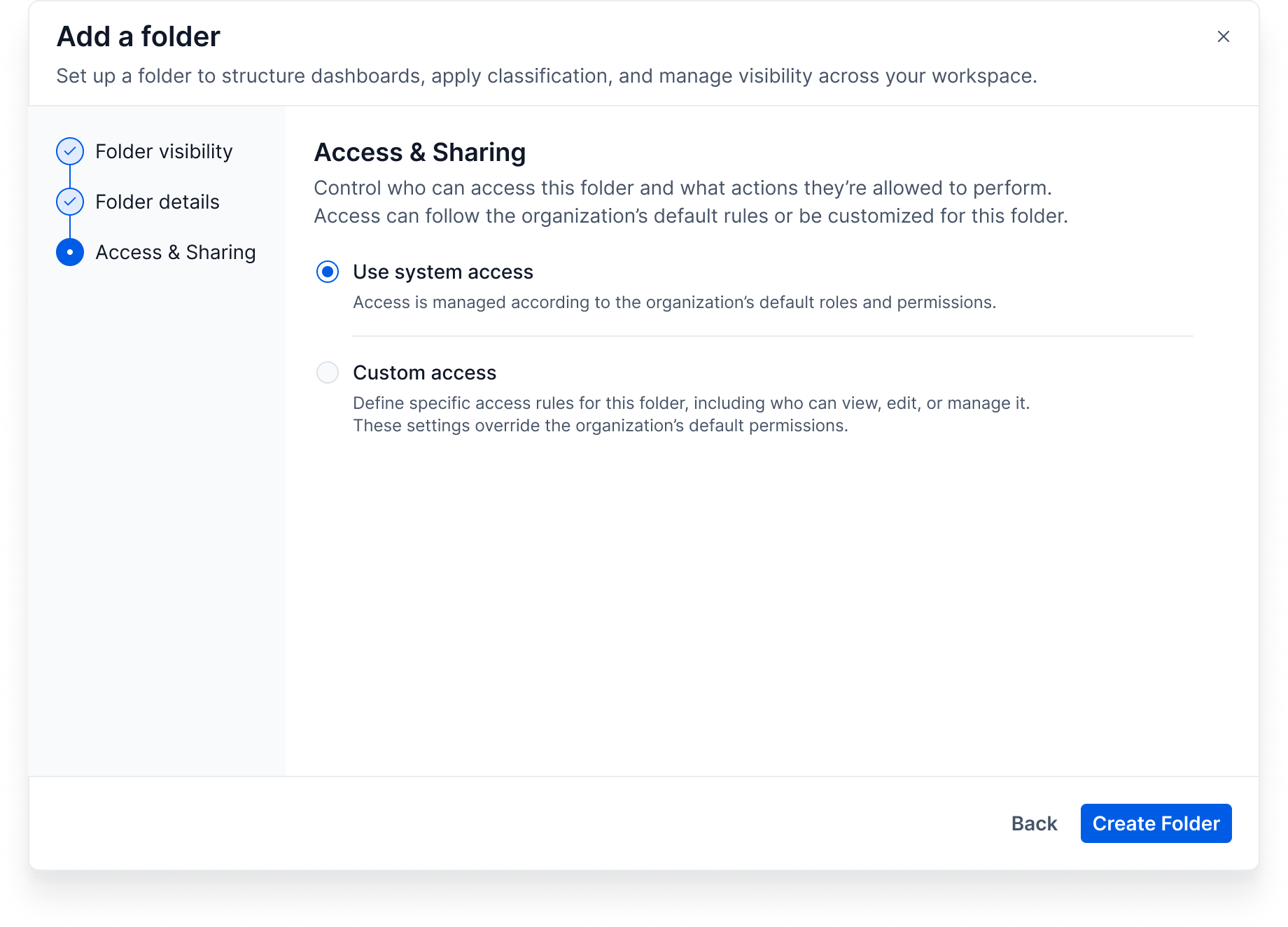
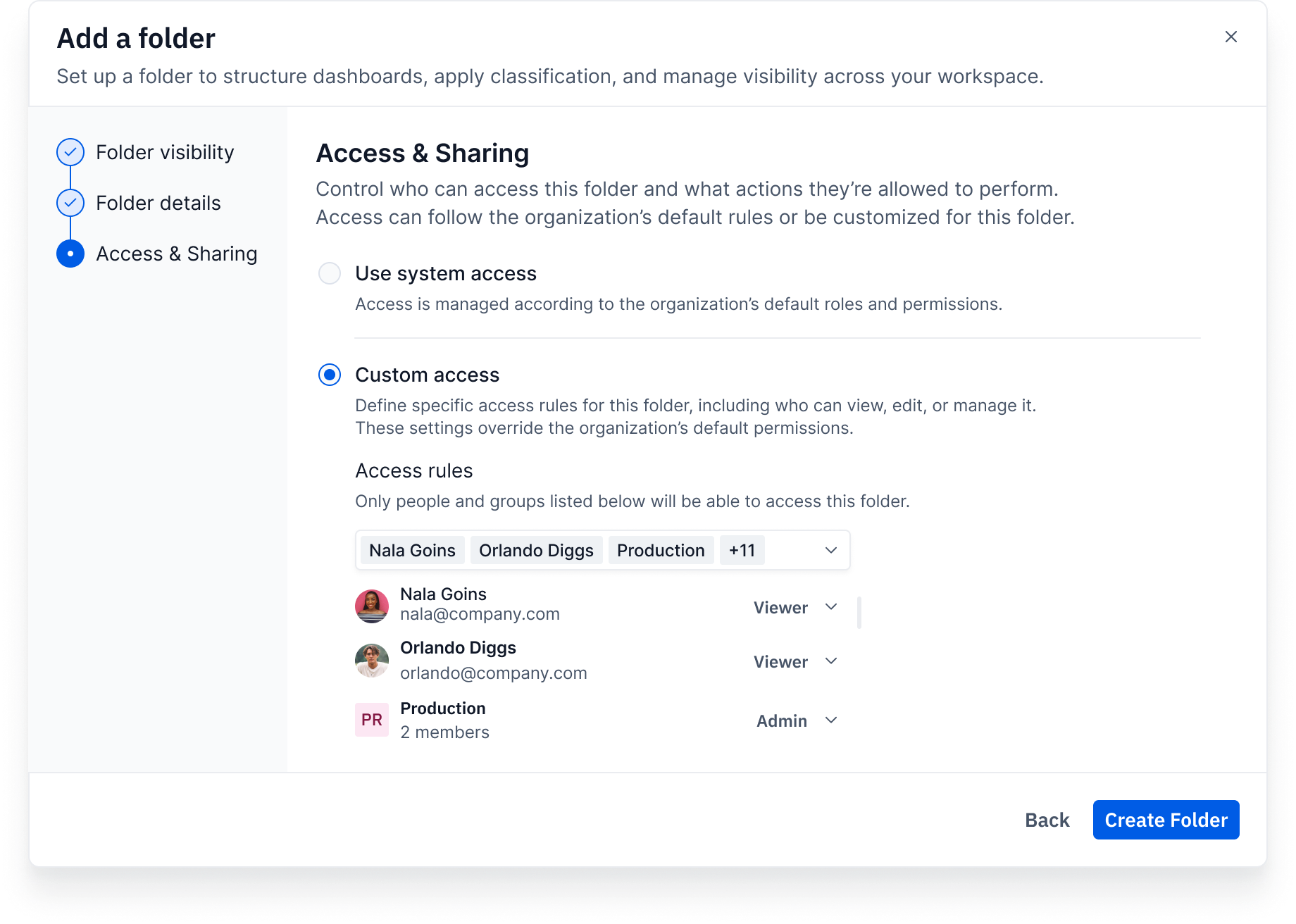
Step 4// Set Access & Permissions
Admins define who can view, edit, or manage the folder.
By default, folders inherit the system's predefined permissions, with the option to customize when needed.
Step 5// Apply System or Custom Access
Admins can choose between system-level permissions or custom access rules.
Custom permissions override the organization’s default access settings.
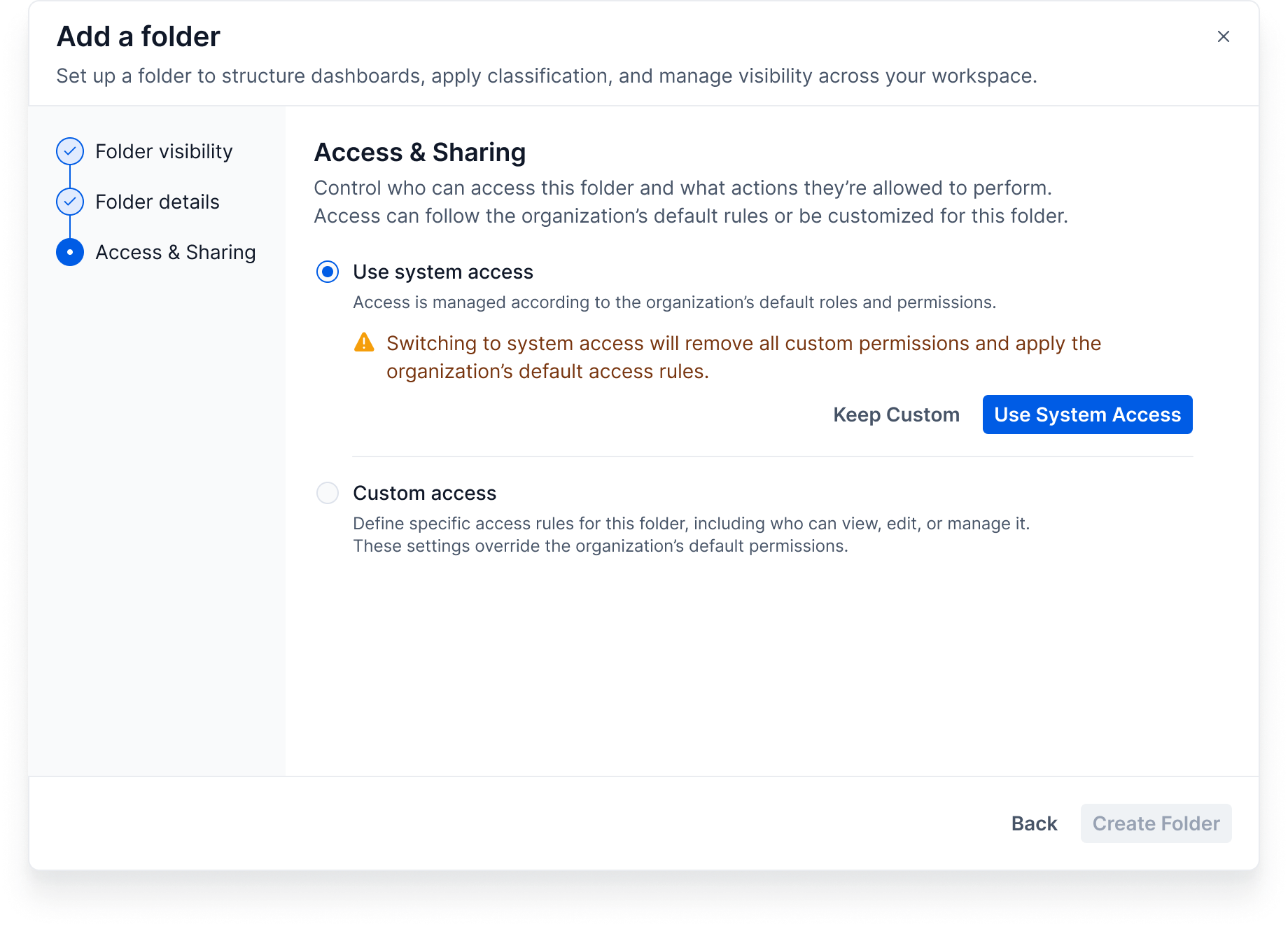
Step 6// Revert to System Access
Switching to system access removes all custom permissions on the folder.
The organization’s default access settings are then applied to restore the standard policy.
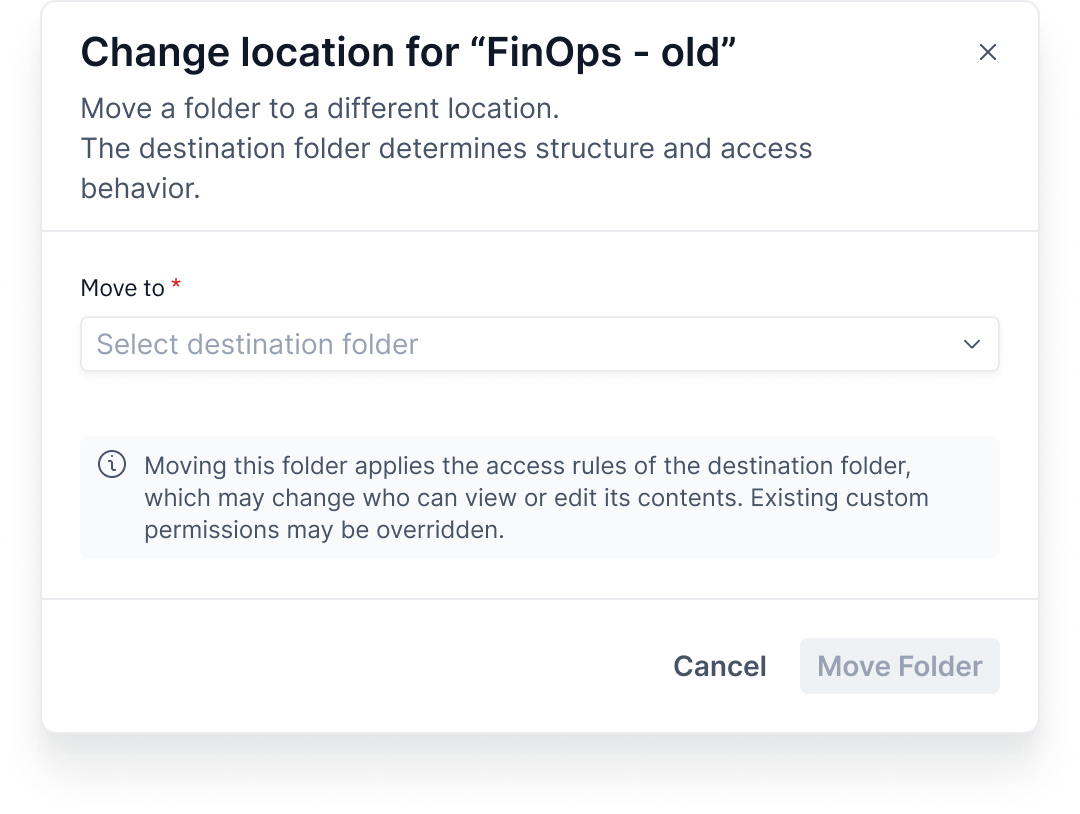
Step 7// Move folder
Admins reorganize dashboards and folders as the system evolves.
Moving items keeps the structure consistent and applies the access rules of the destination folder.
End User Flow - Personal Workspace
Dashboard Overview
End users can view personal and shared dashboards.
They can quickly create dashboards using templates, search and open content, mark favorites for fast access, and use tags for discovery.
All actions remain within their personal workspace, without managing system structure or permissions.
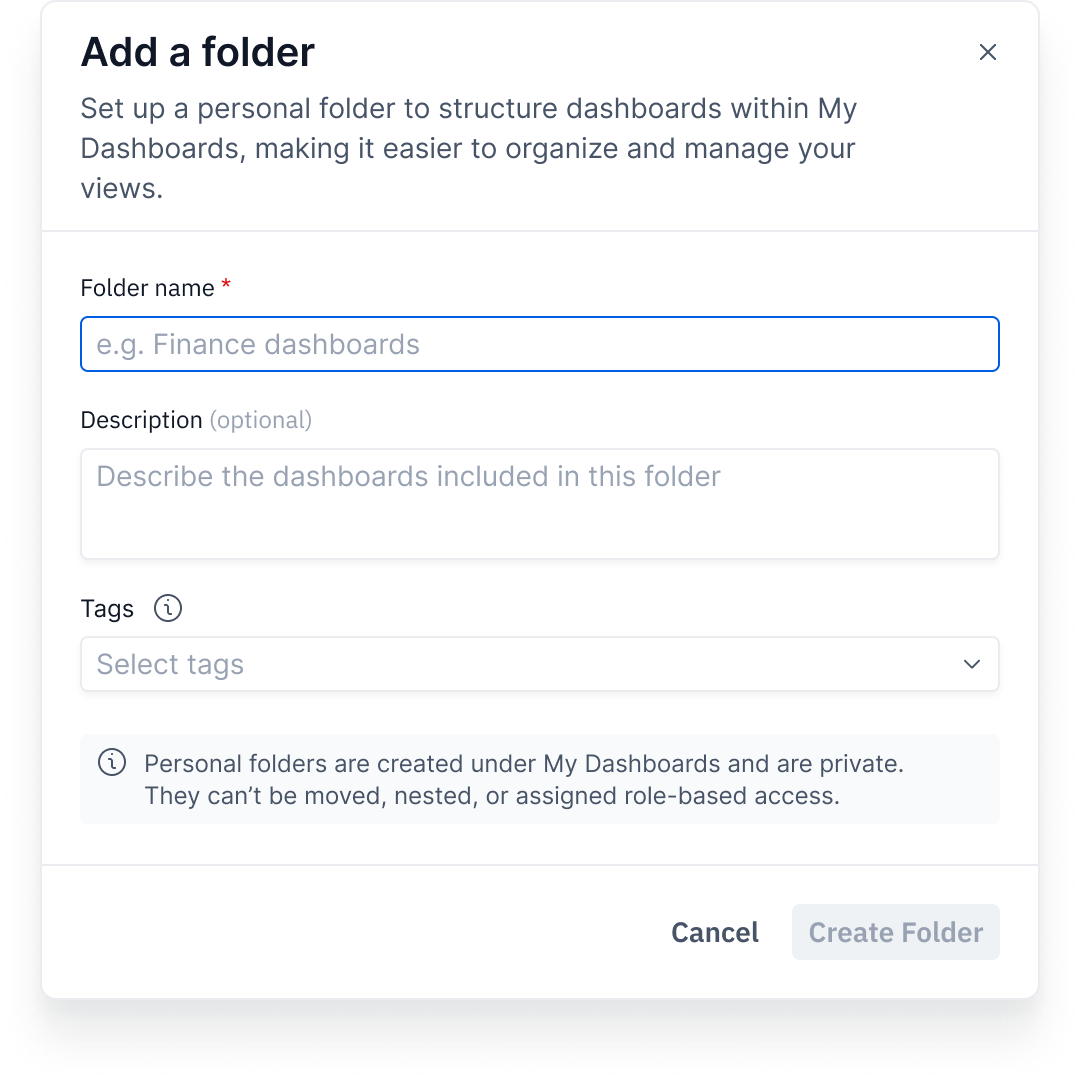
Create Personal Folder
Users create folders under My Dashboards to organize personal dashboards.
They can name the folder, add tags, and keep their workspace structured and easy to navigate without affecting system structure or permissions.
Supporting Features
Favorites as Quick Access
Favorites appear in the dashboard list and in the top navigation, helping users reach important dashboards quickly.
Recommended Dashboards
Recommended dashboards helped users get started faster by providing ready-made starting points.
Permissions & Governance
Admins handled permissions to keep the user experience simple and consistent across teams.
Clear Structure
Folders help users understand where dashboards belong and find content more easily.
Key Insight
A clear separation between end-user workflows and administrative management enables scalability, reduces errors, and improves the overall experience for all user types.